
Bring Realistic Cloth Simulations to Your 3D Web Projects with Cinema 4D (free example included)
Follow this guide to craft dynamic cloth simulations and export them for no-code 3D web platforms.


We’re happy to present our first tutorial-style article and this guest article by our own Santi Sarapinas, tailored for Cinema 4D users and designers eager to create captivating 3D web effects with no coding required. In this step-by-step tutorial, Santi demonstrates how to craft a simple yet visually striking animated displacer effect on a plane object. Whether you’re aiming to enrich your web projects with dynamic visuals or streamline your 3D asset pipeline, this guide ensures an efficient and accessible workflow.
To make your animation truly web-ready, the tutorial also highlights the use of the Objectverse Converter to ensure that your 3D assets remain lightweight and load seamlessly across web platforms.
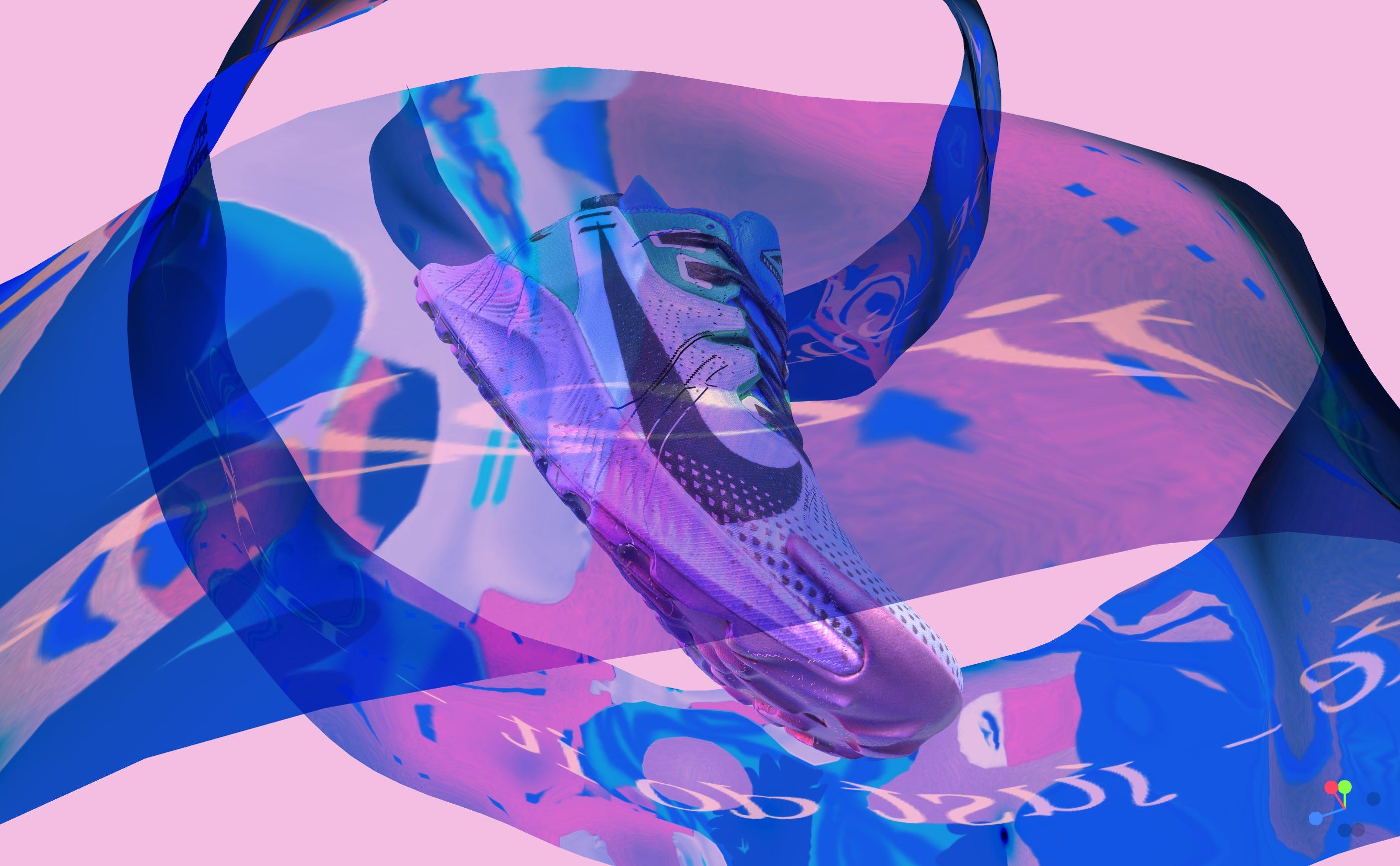
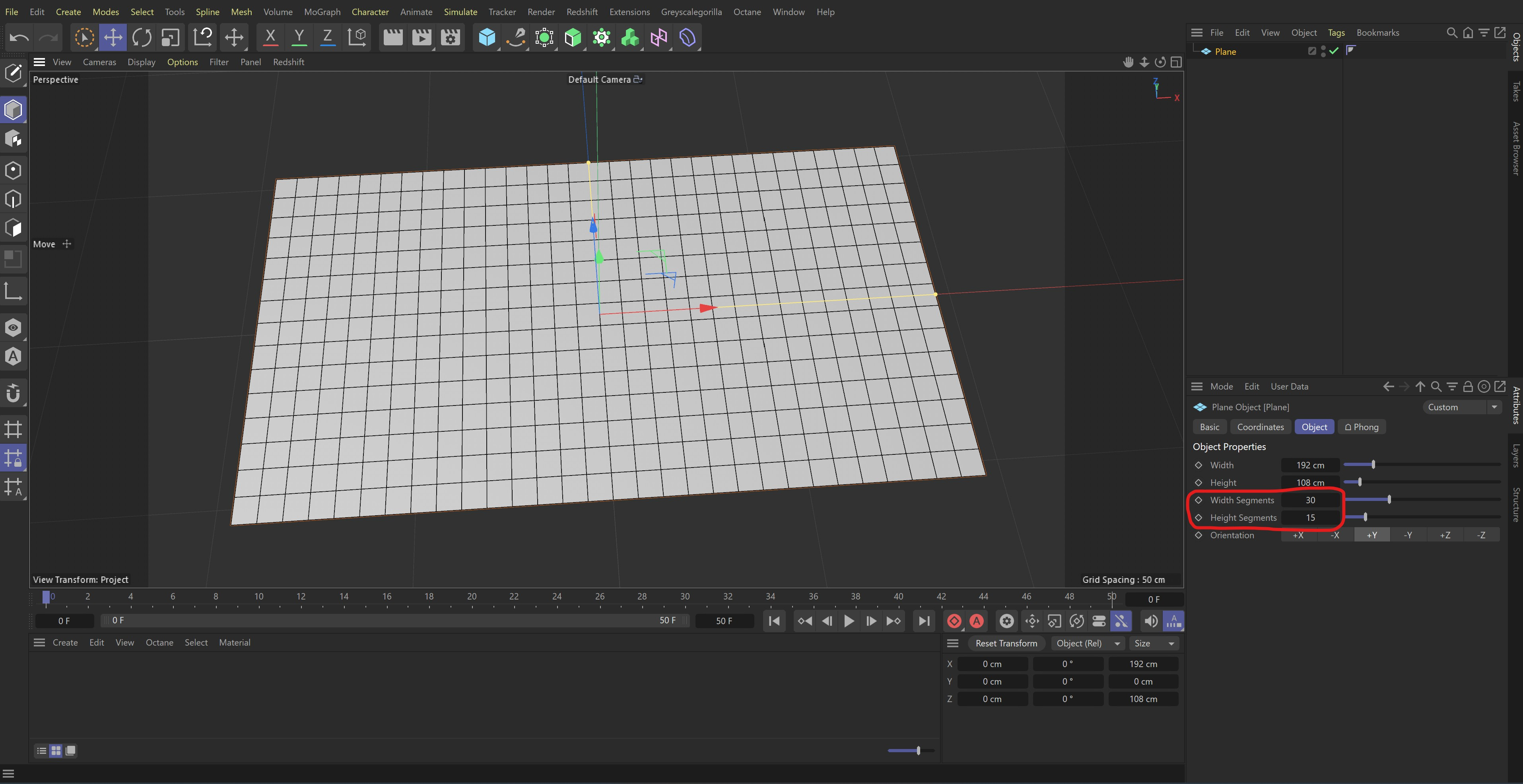
Step 1: Create the Plane Object
Begin by creating a Plane object in Cinema 4D and set the desired proportions—for example, 16:9 (192cm x 108cm). It’s important to keep the segment count as low as possible while still allowing enough geometry to achieve a smooth displacer effect. Lower segments will reduce the final file size without sacrificing visual quality.
Step 2: Add a Displacer Effect
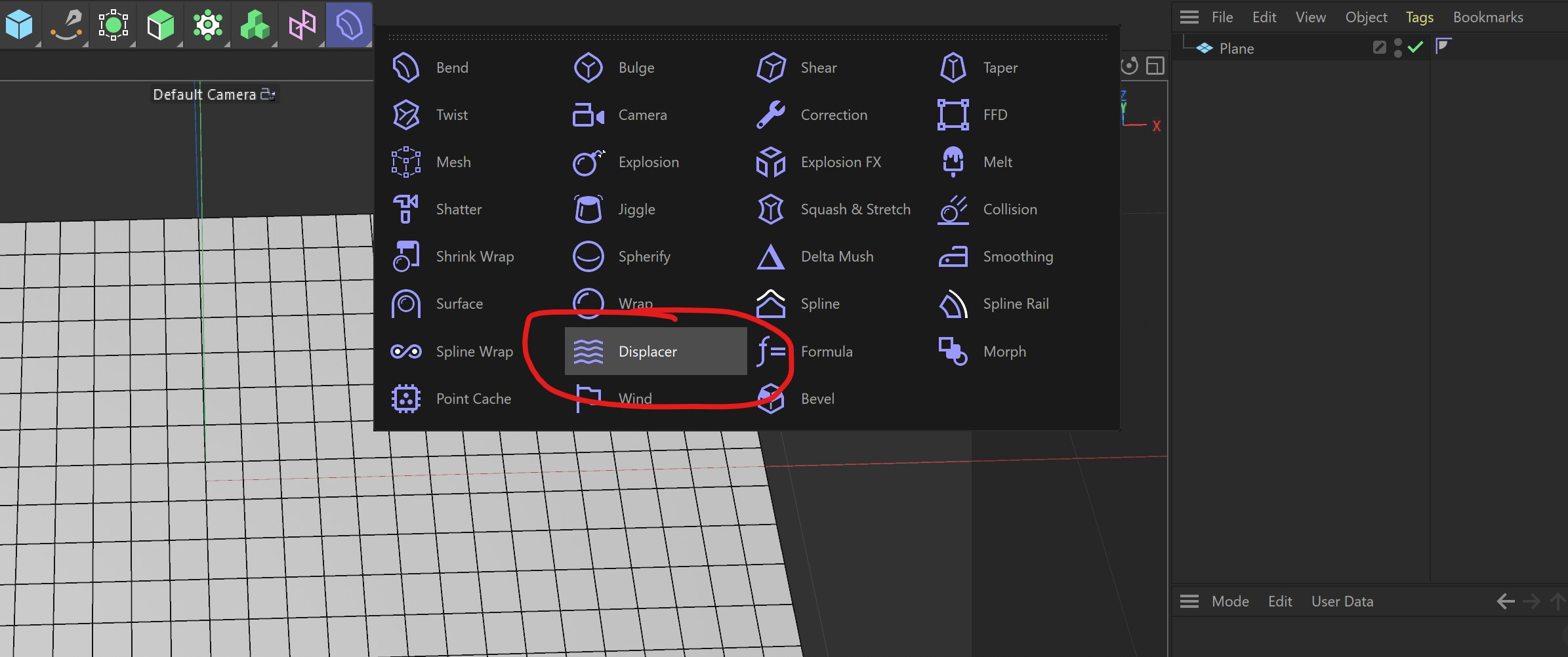
Add a Displacer as a child of your Plane object.
Under the Displacer settings, add a Noise Shader and increase the height value to around 500%. This ensures smoother, more fluid movement.
Set the Animation Speed to 1 and the Loop Period to 1 for a seamless loop.
💡 Tip: Aim for a lower frame count to keep the file size manageable. For this tutorial, we’re using a 48-frame loop.
Step 3: Prepare the Plane for Texturing
Once you’re happy with the animation:
Make the Plane object editable (
Ckey or right-click → Make Editable).Apply a basic UV mapping to ensure any added textures display correctly.
(Optional) Create an image texture—for example, using Adobe Illustrator. Match the aspect ratio to your plane (16:9 in this case) and apply it to a Basic Material in Cinema 4D.
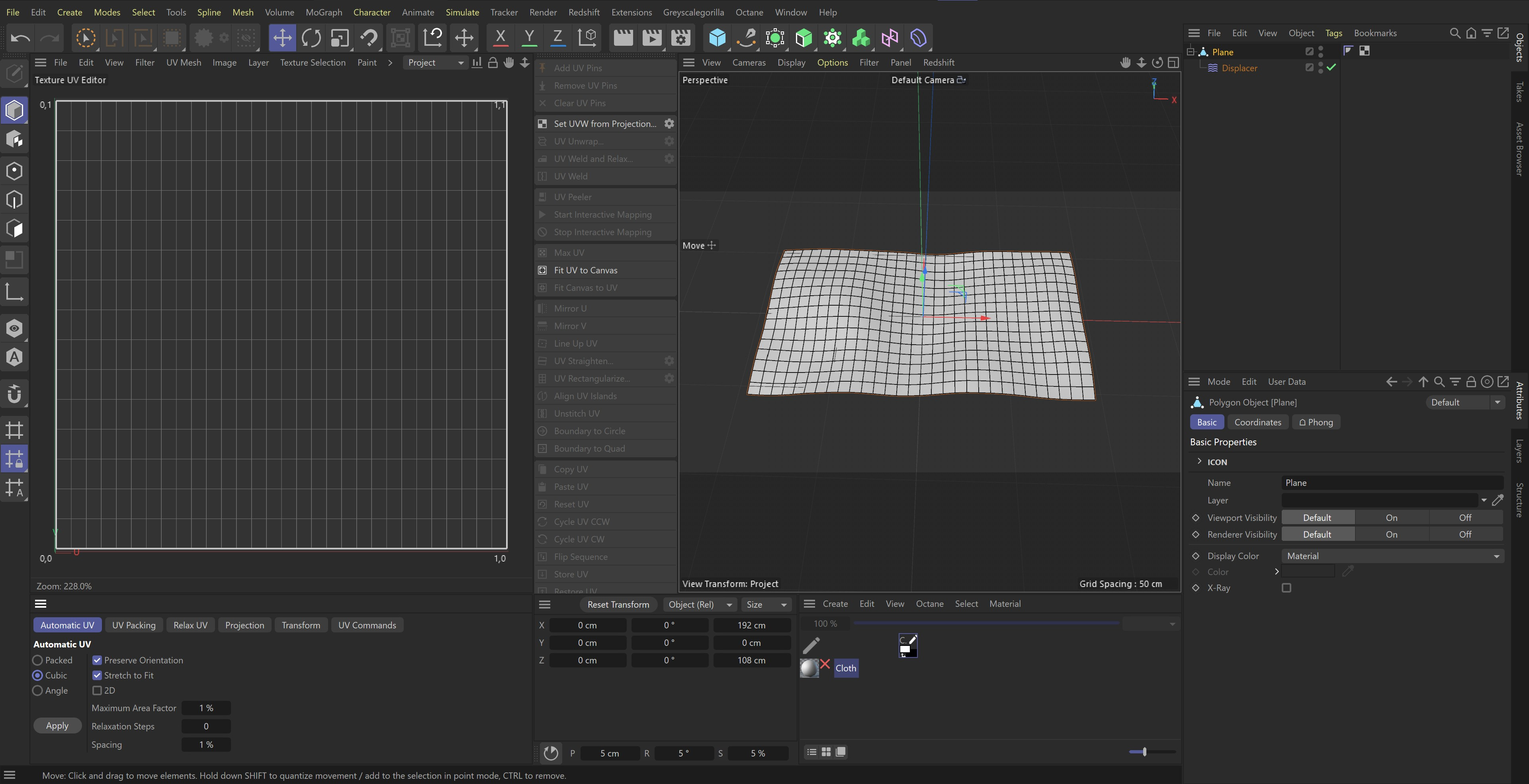
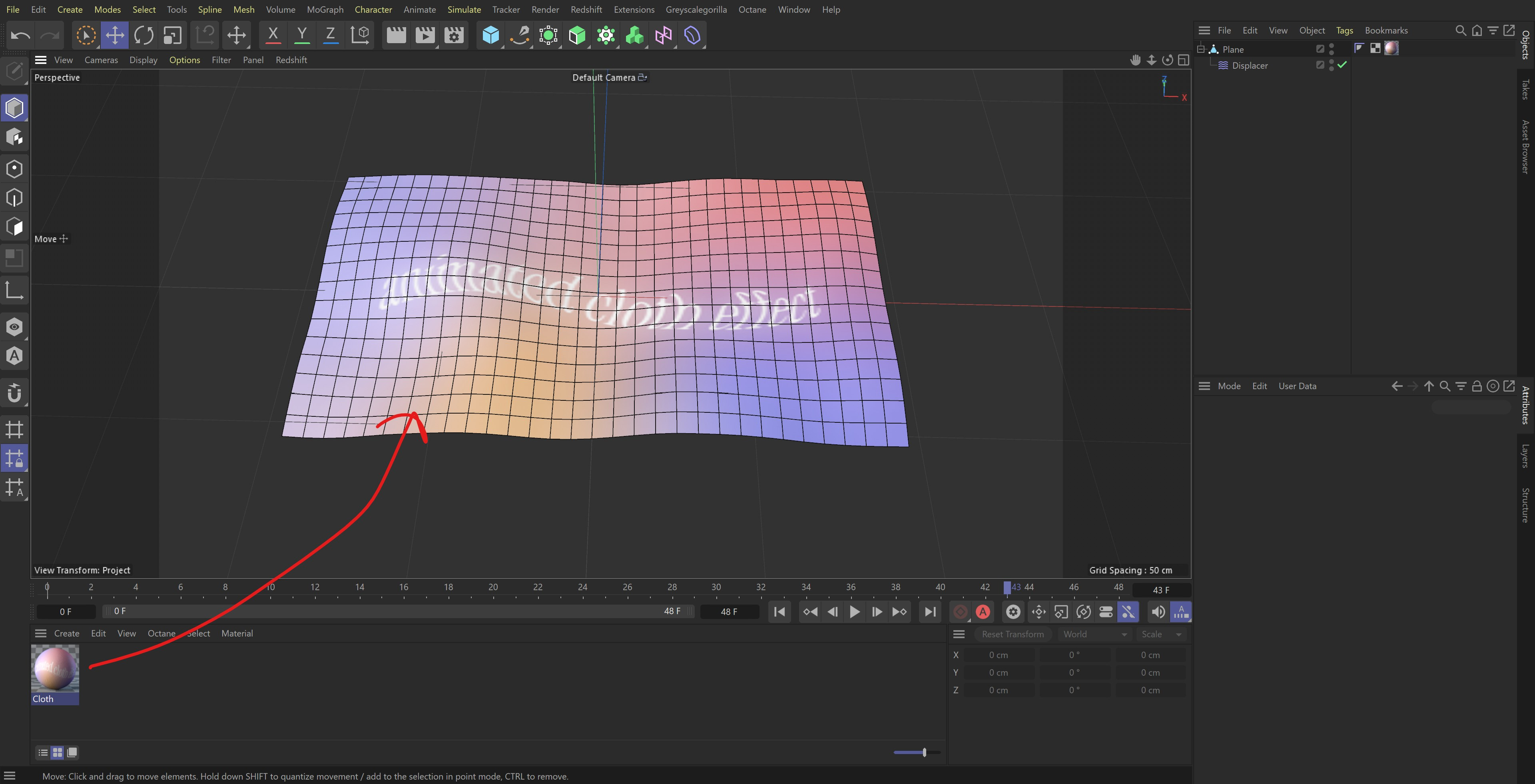
The next step might seem a bit more complex, but trust me it’s not :)
Step 4: Bake the Animation (PLA Format)
To convert the animation into a web-compatible format, you need to bake the animation into PLA (Point-Level Animation).
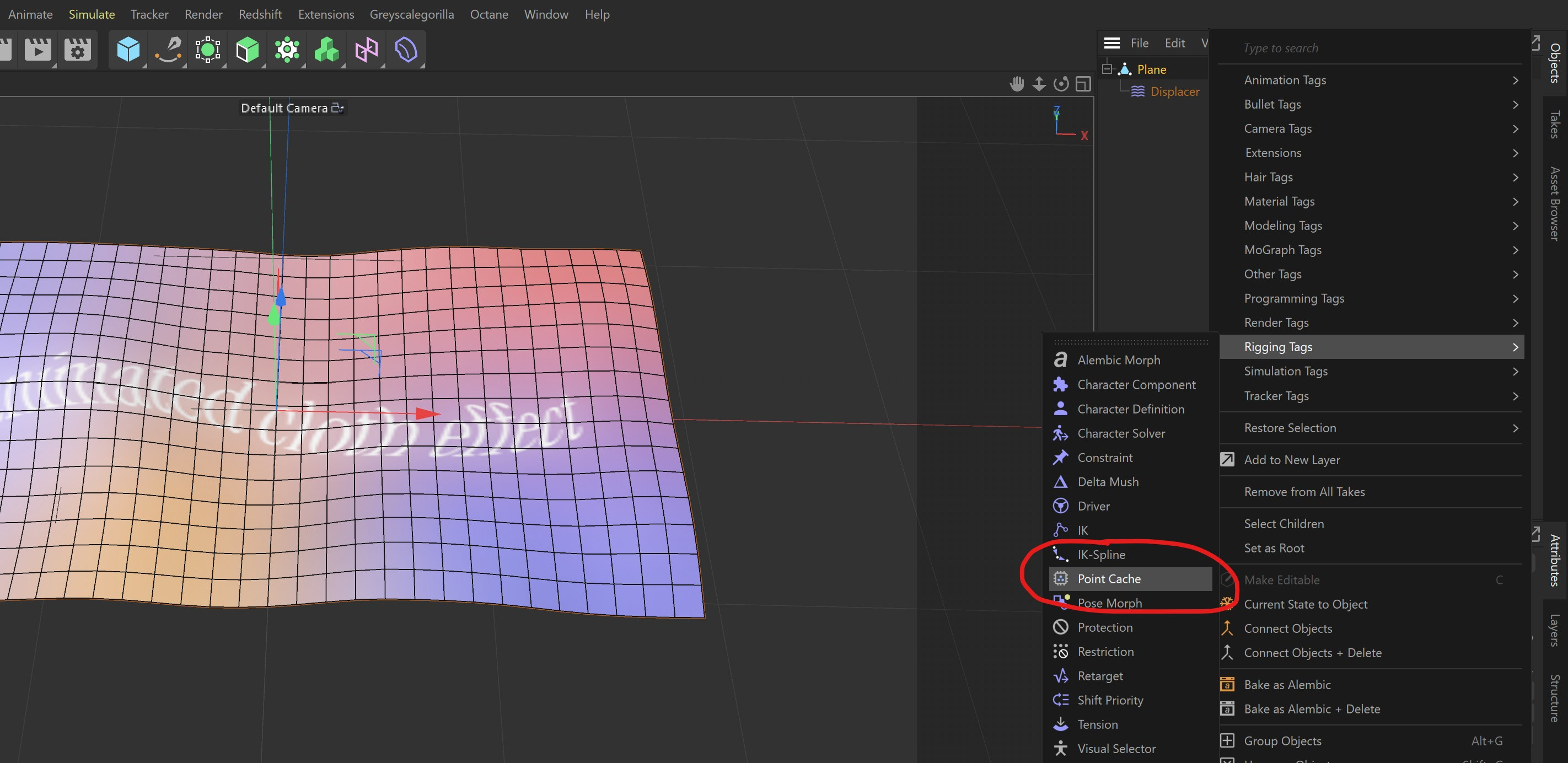
Add a Point Cache tag to your Plane object (Right-click Plane → Character Tags → Point Cache).
In the Point Cache settings, click Calculate to record the plane’s point movements.
Once cached, delete the Displacer. If you press play, the animation will still play as intended since the deformations are now stored.
Step 5: Finalize the Animation with Bake Objects
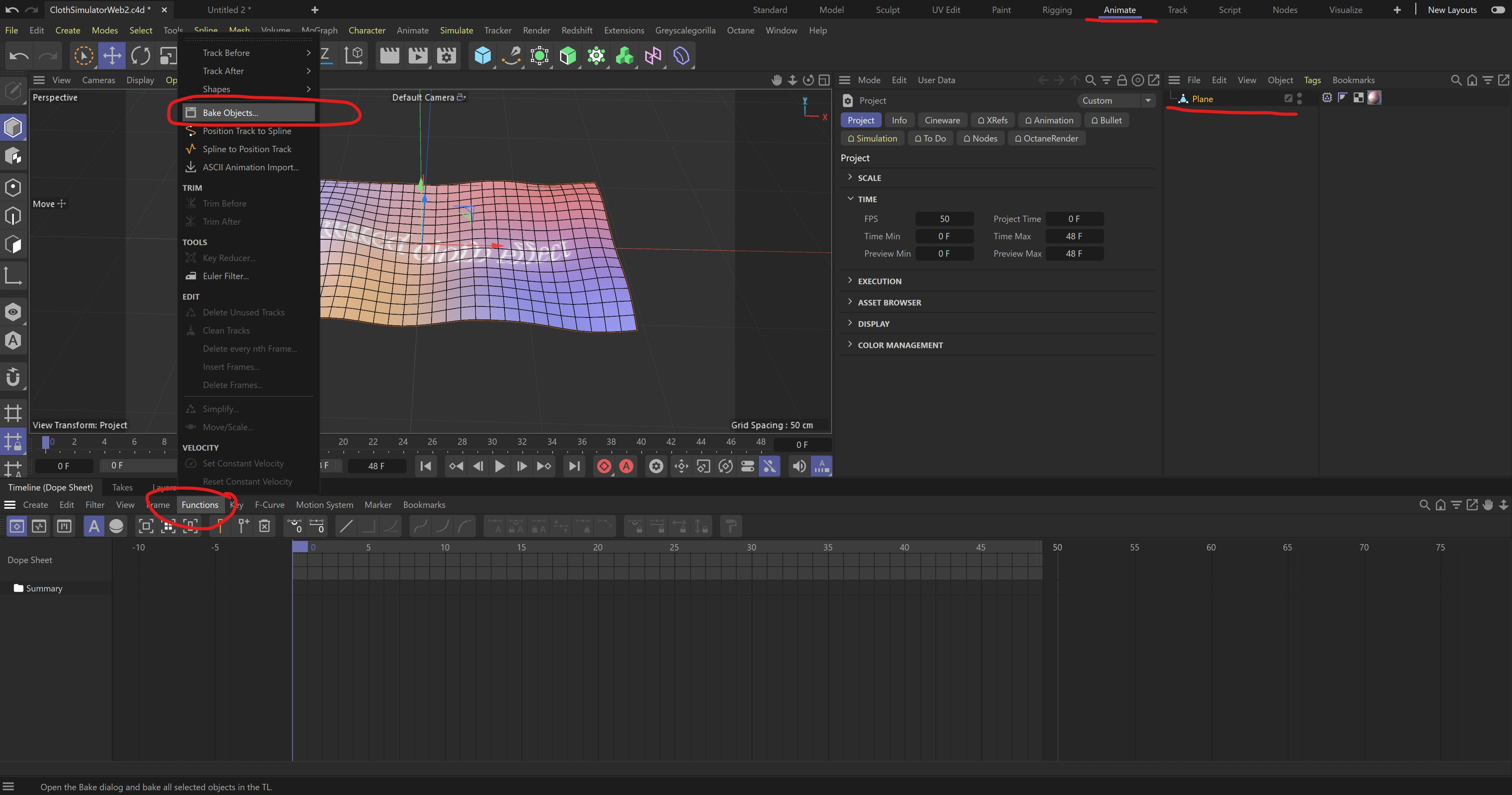
Go to the Animate tab in Cinema 4D.
Select your Plane object, navigate to the Timeline, and choose:
Functions → Bake Objects
In the pop-up window, select All Parameters and click OK.
✅ Result: Your animation is now baked into keyframes, ready for export.
Step 6: Exporting to GLB/GLTF
Delete the original Plane object (keep the baked copy).
Rename "Plane (Copy)" to something descriptive (e.g., AnimatedCloth_16x9).
Export the file using Cinema 4D’s GLB/GLTF exporter.
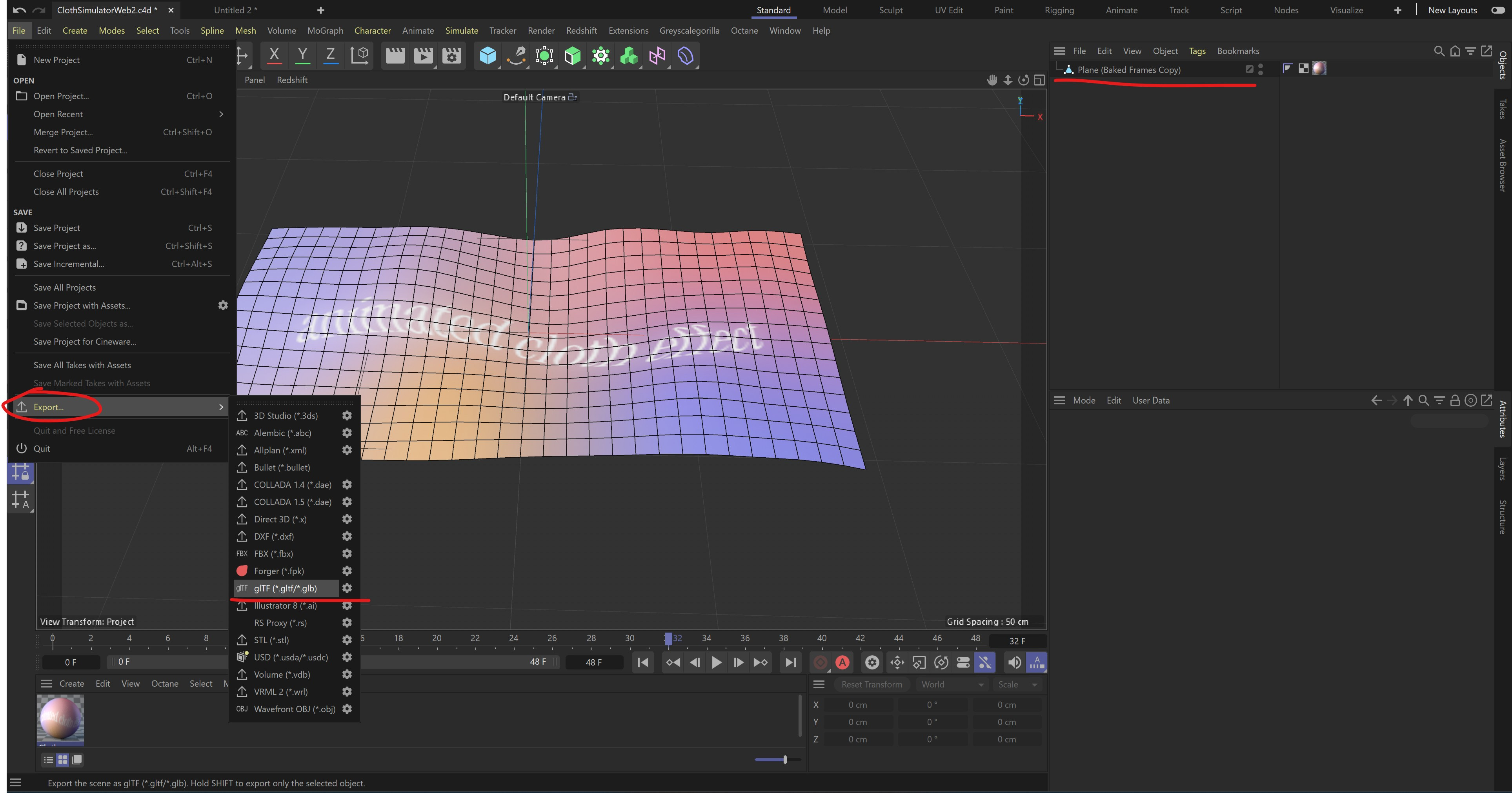
Step 7 Optimize with Objectverse Converter
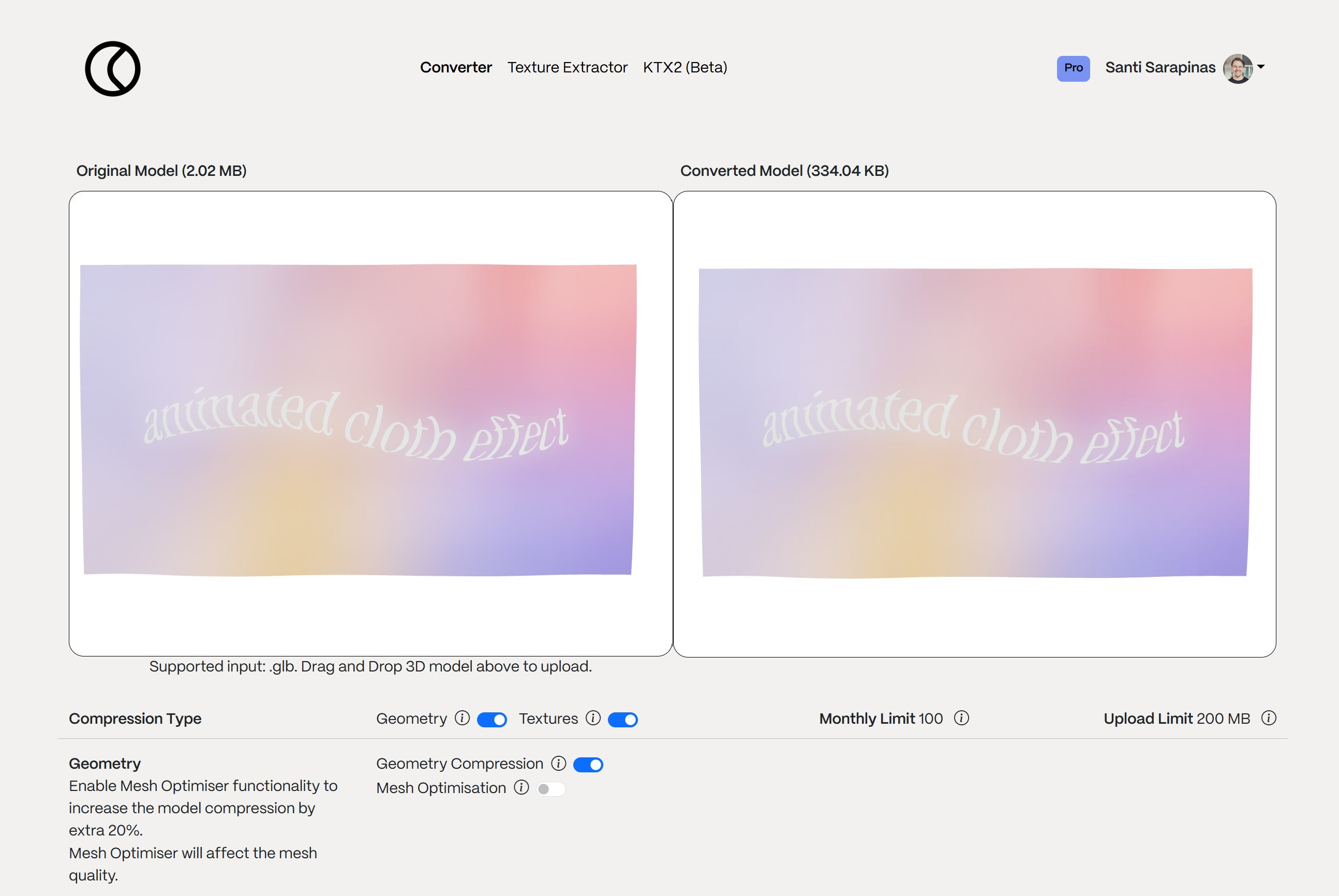
Even with a lower segment count and frame reduction, the exported file may be around 2.02MB—too large for optimal 3D web performance.
Solution: Use the Objectverse Converter to drastically reduce file size. In this example, the file was compressed to just 334KB, improving load times without sacrificing visual quality.
That’s it!
Your animated 3D cloth asset is now ready to be used across various web platforms.
Download the Free GLB and FBX animated Cloth file, change it to your texture and add it to your next no-code 3D web project!
I’ve created two different scenes one with three.js and another with the really powerful No-Code tool PeachWeb. In both cases, I’ve used Environment Map for my Material (Texture) and cranked up the Metalness to get this interesting look.
Want to explore more ways to optimize 3D assets? Check out the Objectverse Converter for seamless 3D file optimization workflows.
Great newsletter once more! Thanks objectverse team!